

|
In a Hurry?
|
 Go straight to the Quick Selection Guide Go straight to the Quick Selection Guide |
|
Introduction
|
|
Windows provides a number of ways to launch installed programs or features. There's the Start Menu, there's shortcuts on the Windows desktop, there's even the Windows Search and Run features. For many people, the facilities already available are quite sufficient. However, without organisation, the Programs section of the Start menu can become a very busy place. Programs have shortcuts placed in folders named after the program itself, or sometimes the publisher, or sometimes the category the program belongs in. If you're anything like me and you install programs a lot, you probably put the program you're installing in the default location and allow it to put a shortcut on the desktop and sometimes in the Quick Launch bar -- and once it becomes almost impossible to see your wallpaper for icons, you start deleting shortcuts you don't often use or dump them in folders on the desktop, or some other location and, over time, the natural entropy of the Universe and your own need to do stuff WITH your computer rather than spend time organising it conspire to make you wish for an easier way. Program Launchers try to provide a more efficient way to work. Some try to help you find the program you want to run but can't find the shortcut for; some help you impose order on your system by giving you organisational tools that supercharge the facilities you have, or replace them entirely. The approach adopted varies from product to product and ranges from dockable windows to tray icons through to keyword typing. There's no "best" approach -- what works for me might not work for you, and your next door neighbour may very well have different needs again. In my case, I use products from two different categories: I use a keyword launcher when I know exactly what I want to run, and a Start menu replacement when I know I want to run one of the programs I have in a particular category but can't remember what it's called -- or want to think about different approaches or options that I may not have considered for a given task. Because of the sheer variety of possible approaches, you may well find that nothing presented here is perfect for you. If, for instance, you like the visual appeal of a dock-type approach but just can't find one that you're comfortable with, it can often be worth parking the idea and trying another approach entirely. Even if the alternative approaches also don't quite work for you, I often find that a way of working championed by one program can be used in another and suddenly a hybrid approach becomes the perfect way to work! So although it can be said that each approach and product has its strengths and weaknesses, you may find that many alleged weaknesses are irrelevant and that some trumpeted strengths don't do anything helpful for you at all. Just to stop this section from being completely chaotic, the suggestions here will be divided in five subcategories: keyword search, keyword command, panels, menus and docks. |
|
Discussion
|
|
Keyword Search
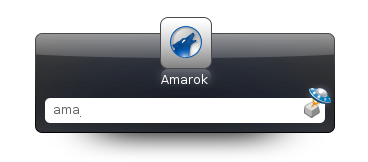
With Launchy you can not only launch applications but also -- using the same keyword philosophy -- launch your preferred media player with a specific MP3 file; invoke your preferred desktop search tool while entering a search term of your choice; or have your preferred browser open on a specific bookmark or page from the history. The possibilities are virtually endless. Some users have reported some stability problems but Launchy has an enthusiastic userbase and, because it doesn't need you to organise it or your system before you can get anything out of it, is well worth a try, particularly on busier systems.
Keyword Command
Please note that a previous note here regarding the site's suspicious rating by Google's Safe Browsing service no longer applies, as the site is now reported to be safe by it and by WOT. A simpler alternative is SlickRun. Slickrun is minimalist but extremely easy to work with. At its heart is a concept called MagicWords which, as you might expect, are typed shortcuts to programs or functions.
Panels
Coming to the panels class, there are a lot of good choices, including FSL Launcher, Fast Launcher and 8Start. But 8Start comes out on top in many key areas like footprint and functionalities.
Menus
In the menus class, readers suggestions have led me to change my mind and suggest as the best solution Free Launch Bar: this is an extremely stable piece of software that will give you exactly what you want from it. A good contender is JetStart, but the free version is limited to 5 pre-set general categories. You might also want to look at LaunchBar Commander - it's by the same author as FARR but takes a hybrid approach, between docks and menus, being able to do both with equal facility.
Docks
Finally, the docks class. These tend to be graphically interesting, often featuring a configurable background shape on which appears icons for applications, documents, shortcuts or controls. They can usually be persuaded to stick themselves to a screen edge or some other location. They're often a bit like toolbars, but prettier. I have to admit I'm not an enthusiast of these type of launchers, so my tests may be limited by my lack of imagination or insight into their good points. Two specific programs of this type are worth a look. I can say that a good choice is RocketDock. It is well supported, has a small memory footprint and can probably do whatever you'd expect from a dock. It's very configurable, with good options for visual style, behaviour and docking position. Another excellent choice is Magic Formation (thank you Anonymous reader!). It sits somewhere between panels and docks in function but is included here because it's visually more dock-like than panel-ish. It doesn't require installation (although I have yet to check if its truly portable). Its default behaviour is to display a circle of icons around a colourful centre circle when a circle gesture is performed with the mouse anywhere on the desktop. This means it's there when you want it and not when you don't. (Although as I use a graphics tablet rather than a mouse, I occasionally find I get it by accident!) New icons can be added by dragging them to the centre circle. Documents can be dragged to application icons too. By default, the circle of icons contains shortcuts to favourites, My Documents, the desktop, My Computer, the command prompt, calc.exe, notepad.exe, mspaint.exe and the volume control, but any or all of these can be modified. The program allows the selection of any one of up to 25 pages of icons. If I had to choose a launcher of this type to use, this one would definitely be my choice. MagicFormation is a real grower, and has already notched up a Lifehacker recommendation. Congratulations! Both are winners. Other software suggestions: |
|
Related Products and Links
|
Launchy


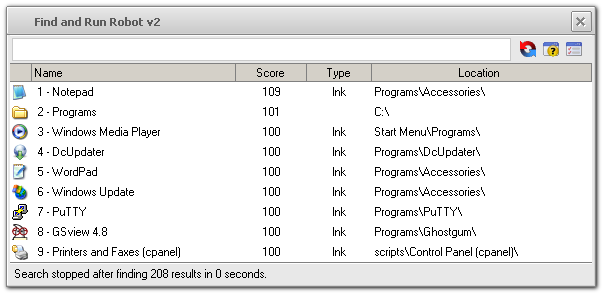
Find and Run Robot

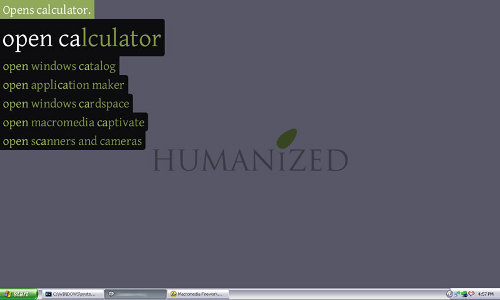
Enso
SlickRun
8Start
FSL Launcher
Fast Launcher
Free Launch Bar
JetStart
RocketDock
Magic Formation
|
Editor
|
|
This software category is maintained by volunteer editor oblivion. |
|
Tags
|
|
quick launch applications, start programs, launch programs, best free program luancher, top free program launcher |
Back to the top of the article.
 We are looking for people with skills or interest in the following areas:
Comments
Yal - yet another launcher:
https://github.com/boobcoder/Yal
Recently I've been using a launcher app I found... Quick Access Popup. http://www.quickaccesspopup.com/ which uses the Start-W combination to pop up a menu you build. It's pretty feature rich and freeware. It does pop up a "support freeware" reminder on occasion with many options to show your support. Surprisingly it's written an "AHK" - Any Hot Key scripting language! I recommend it.
I like QAP. It looks very similar than the app I use for years now, Quick Cliq. I will use them now side by side to make a comparison.
I prefer the mouse-shortcut of Quick Cliq (right click + move down) because with QAP I had to put Chrome in the exlusion window because I use the wheel click all the time to open a link in another tab. So far I don't see many differences but I will try QAP for a while §to find out. Thanks for mentioning it.
I browsed the Quick Cliq web site and liked what I saw. I then browsed my PC and found I had tried it in 2014. This was my comments to myself -
DO_NOT_USE
This takes over too many HotKeys
INCLUDING
Ctrl Space (hides windows) and stuffs intellisense in VB6 IDE
If you find that QAP is similar (has all the features of Quick Cliq) AND DOES NOT HIJACK ALL THE HOTKEYS
I would appreciate your feedback
I tried both Quick Cliq and QAP a few days now and I must say they are very simular.
I use Quick Cliq a few years now and I come to the conclusion QAP doesn't add anything for me (it's not less either) so i will keep using it.
I don't have any problem with his use of the hotkeys (I'm a mouseman myself and make little use of them) but i know that you can alter them in the settings. You can even disable them so this is no issue for me.
In QAP I had to exclude Chrome (like I commented before) so I couldn't use his clipping feature in Chrome like I can with Quick Cliq. I prefer the look and feel of QC too. I builded the same menu in QAP that I have in QC but the shown menu looks so big (almost the entire height of my window)
Conclusion: i keep using QS but QAP is a very good replacement
Here's my Quick Access Popup menu as it appears on my 15" Dell Laptop screen under Windows 10 (Anniversary Update) - https://goo.gl/photos/aiJJaUVtHLUCbTCv9
I'd say it's a pretty extensive menu that only takes up about 3/4 of the height of the screen.
- Bob
I see what you mean but I compare it with Quick Cliq and for me it looks big. In this screenshot you can see the difference on my screen. Left is QC and at the right is the menu of QAP. https://gmkr.io/s/57ff1ce8f7bcdf6879f93904/0
Do you see what I mean?
I use SE-TrayMenu (install or portable).
http://www.softpedia.com/get/System/Launchers-Shutdown-Tools/SE-TrayMenu...
Not much info on the developers site unless I'm missing it but it doesn't appear to be Win '10 supported although that doesn't mean it won't run. I don't use Windows 10 so this screenshot is from my VBox Windows 7 system on Linux. Different appearance settings are included and you can have a more narrow display if preferred by shortening the launcher text entries. MC - Site Manager.
http://i.imgur.com/5SPtYP7.png
Can SE-TrayMenu have sub folders like BobTSS ?
You have encouraged me to give QC another try.
I have switched off Hot Keys, and hopefully Clipboard monitoring, as they are the areas that I think messed with my VB6 IDE(VB6's program coder/editor), and will see how it goes.
Did you hear about the guy who jumped off the Empire State Building ?
It was back in the days before air conditioning, and most of the floors had their windows open.
As he (the jumper) passed the open windows, the office workers could hear him say, what I am saying -
"So far so good"
XP users (hello compatriots), will have to use the previous program 'Folders Popup'
If it is mainly folders accessing, I may give it a miss
Rob
Quick Access Popup is a folder switching app in the first place. That can also launch apps.
Listary (embeds folder search into file dialogs, great product but not mentioned here as it isn't primarily a launcher) has now added launch capabilities.
(Effectively, you can invoke it like you would something like Launchy to get a dialog onscreen -- Listary uses two taps of the ctrl key by default) type part of the program name (or a previously defined alias) and you're there. Much like FARR, in fact.
And it's still compatible with XP.
You might find that worth a look.
I'm always in search of the ultimate keyboard launcher. I already used Launchy (which never pleased me) and SlickRun (which was good, but the development stagnates). Currently I was using both Executor and FARR (both products that suited me well), but since two weeks I'm trying out Keypirinha and I fell in love with it very quickly and now installed it on all my machines.
It works "out of the box" very well.
And the developer is answering questions very quickly.
Eg. I want to use my own 'words' to launch programs (eg. typing "mail" for launching MS Outlook). Keypirinha isn't designed with that in mind, but I learned from the developer that creating shortcut links with the name I want, is a good working solution.
Currently, I'm in love with Keypirinha. (Beautiful name also ;-) It definitely deserves to be in this list.
Wox:
https://www.getwox.com/
your link doesn't wox
Try this one instead -
http://www.getwox.com/
Rob
PS My ideal launcher would be an icon in the SysTray.
When one mouses over it, a menu rises.
You can move the mouse up to an item or a 'folder'
Hovering can show a sub menu with some clickable shortcuts, or more sub menus
See what you think to SE-TrayMenu. MC - Site Manager.
http://www.se-soft.com/en/Products/TrayMenu/
It needs a click to rise, but I could live with using a hot key.
I don't think that it has the ability to have parent menu entries that expand (via mouse hover) to sub menus.
I would need that to categorize the entries, and make it manageable (and usable when you have a missing memory at 74)
Rob
This is the best dock for me. sTabLauncher. I definitely prefer it to rocket dock. It is a tabbed dock, so you have a different dock under each Tab.. It can be at bottom or top of screen. It can be used to launch programs or files. Example I have an office tab for my word processing, spreadsheet word web etc. As for file launching I have an accounts tab. Each icon on there is a direct link to a specific spreadsheet of an annual accounts, I have a media tab, computer tab with short cuts to drives, cleaning programs etc. If you are looking for a dock or you are not happy with you have, go have a look. I have been using it since W7 it works on W10 so I guess it will work on W8. It is completely free. I have never seen any upgrades to it, so have no idea if it is still supported. but when something really works well, why change it. You will find it here. http://stablauncher.com/
To paraphrase an old saw, I don't know much about computers, but I know what I like. And I like Keybreeze. I tried several of the programs mentioned in both the reviews and the comments. However, several years ago I came across Keybreeze, and it clicked with me. I have no way of knowing whether "power users" would find it adequate. But it suits my needs - and computer skill level - very well. It leaves my hands on the keyboard, and I like that, because I'm an old-timer from long before the mouse became king. Hit a hot-key (a semicolon is the default, but it's customizable) and a dialogue box pops up. Type your command and you're off to the races. It has built-in letter commands which I find useful: type "w" and a variable - say, John Wayne - and in a flash, you're reading about the Duke on Wikipedia. A "d" and a variable takes you to the appropriate page on dictionary.com. A "yt" and you're at youtube--you get the idea. And you can add your own letter commands. Well, I don't mean to ramble on endlessly, but if you're in the market for a launching app, you might give Keybreeze a shot. It's at keybreeze.com - go figure.
FYI the link to Enso's website is dead. I believe this program is also no longer in active development, but I did find this:
https://github.com/GChristensen/enso-portable
Quick Launch - Qsel has worked well for me for a number of years.
http://www.horstmuc.de/wqsel.htm
I feel that I have lost the battle.
I loved the XP classic Start Menu, particularly once one learned how to create your own high level (Main list on the left) categories.
I dislike fancy graphics and Icons, and other 'candy'
I will concede that some of the population are the opposite of me, but then MS decided to make you all the opposite of me -
- They banned the XP Classic Start Menu style in Win7 and Win8
- They foisted the 'hunt and peck' 'Lucky Dip' start menu on to us
And it appears that the majority of the applications that are discussed here, fall into that category.
Surely ('Airplane'), there are some of us left out there, that prefer to organize our shortcuts into predefined categories, and then be able to easily/quickly locate and launch any of them ?
Ideally such a program would have an icon in the Sys Tray (now called Notification Area by MS), that with a single left click, will raise a menu, with sub menus appearing as you move your mouse. A single click will launch whatever, and the menu will disappear.
Is there anyone left out there that likes to live in an organized way ?
I will continue my search for such a program, and will report back, if anyone expresses an interest.
Rob
Pages