

Introduction
The theme of this category is to provide reviews for the most popular and best free file-based backup programs that provide adequate features, ease of use and ability to set and forget. File based backup programs do not usually support the creation of a system boot restore disk. The intention behind backup software is to backup important data you create, not generally to restore your operating system or applications. Use backup software to save document files, browser favorites, pictures, videos and other data, documents and media. There are other options for creating system restore disks and restoring applications. Some of the backup programs are easier to use than others usually at the cost of some features. Backup programs do have their own nomenclature for processes. Please take the time to educate yourself on the process and terminology. Gizmo's has several articles for reference, some mentioned later in this review and the Freeware Forum to post questions. Downloading and trying two or three different programs to perform a test backup may be preferable to determine the proper fit for your needs and experience.
Important Features:
- Shadow Copy or VSS - Comodo Backup
- GPT drives - EaseUS - AOMEI
- Incremental & Differential Backup - Comodo, Backup Maker
- AES Security Encryption - Comodo, Backup Maker
Note: There are a lot of free backup programs that have some unique features and excellent functionality that really deserve mentioning, but room here does not allow. If you are looking for more advanced programs, or some specific functionality, please check out the three links directly below. Special Review
Recommended Reading:
- Types of Backup Software : What’s the difference between Disk Imaging, File Based Backup, or Synchronization, and which should I use?
- File Backup Terminology: What do terms like “Differential,” & “Incremental,” mean, and how will they help me? (Includes other backup related terms.)
- More Free Backup Software Recommendations & Reviews (Advanced Backup Programs, Backup Programs with Unique Features, Reviews of Backup Software For or By Our Readers, etc.)
 Read this article in Spanish (Español)
In a Hurry?
 Go straight to the Quick Selection Guide
Discussion
TIP — Can't Find What You Need in the Choices Below? Try Our Extended List of Backup Programs.
 Backup Maker: Backup Maker opens with a clean console inviting the user to start with a backup or restore. Click backup to start the restore wizard. Choose presets or specific files and folders, scheduling, full or partial backups, a target location, and a backup name, those are the basic wizard features. The advanced features include the ability to catch up missed backups, creating settings for not overwriting older backups, security options, back up condition options, actions to occur before/after backup, and splitting the backup. The wizard did a good job of walking me through the options. The developer has fixed the system slowing or freezing when drilling down directory trees that one of our user's pointed out. I've tested this feature again and cannot recreate the issue. The software has one of the most extensive sets of options for customizing backups. Unfortunately imaging, cloning or system boot backups are not supported. Backup Maker does not limit any of the functionality versus the paid version. The omissions from the paid version are commerical use and technical support. For restoration, assuming your operating system is installed and functional, Backup Maker will restore data in a few short steps. Click the restore button, select the files to restore and where to restore them. Keeping with the program's trait of selection detail, the options to select specific files to restore from a group, and being able to select an alternative destination or restore the original path are nice options.
.jpg) FBackup: starts with a Getting Started window over the main window. The Getting Started window can be turned off after the first use however this window is also a Wizard that novice users may find beneficial. The Getting Started options are Backup, Restore and Links. Select Backup another window will open. Name your backup, choose the target destination, click next. The following window is for selecting and excluding files. This requires a familiarity with file tree structions and locating the information you want to backup on the hard drive. The next window is for encryption and selecting full or mirror backup. Mirror backup will essentially copy files from one location to another. Mirror backups cannot be compressed or password protected. The next window is for scheduling. A nice feature is each window has a help link associated with the information on that window. There is also an advanced button at the bottom of the screen to access other options. Essentially there are four steps to creating a backup. After the backup is complete a notification window will pop-up showing the files backed up. This is part of the CRC32 test. The test cannot be performed again after the backup. FBackup will return to the main window. FBackup free does not offer incremental or differential backups. Compressed files are zipped so no need for mounting/unmounting. Backups can be password protected but they are not encrypted. A unique feature of FBackup is the use of plugins which can be used to automate backups. These plugins are preset for specific applications like game saves, email data, web browser settings, anti-virus configurations, etc. The developer has created a rather long list of available plugins to help capture specific application files. The options menu under the File tab provides access to configuring essential functions of the software. Since FBackup is heavy on pop-up notifications, the Notifications option is very handy for customizing what pop-up windows you see and for how long. The UI is similar to MS Office 2010's ribbon toolbar making FBackup more comfortable for users of MS products. Overall a nice backup program for users of moderate computer knowledge. My dislikes are the restrictions in the free version compared to the paid version.
FBackup: starts with a Getting Started window over the main window. The Getting Started window can be turned off after the first use however this window is also a Wizard that novice users may find beneficial. The Getting Started options are Backup, Restore and Links. Select Backup another window will open. Name your backup, choose the target destination, click next. The following window is for selecting and excluding files. This requires a familiarity with file tree structions and locating the information you want to backup on the hard drive. The next window is for encryption and selecting full or mirror backup. Mirror backup will essentially copy files from one location to another. Mirror backups cannot be compressed or password protected. The next window is for scheduling. A nice feature is each window has a help link associated with the information on that window. There is also an advanced button at the bottom of the screen to access other options. Essentially there are four steps to creating a backup. After the backup is complete a notification window will pop-up showing the files backed up. This is part of the CRC32 test. The test cannot be performed again after the backup. FBackup will return to the main window. FBackup free does not offer incremental or differential backups. Compressed files are zipped so no need for mounting/unmounting. Backups can be password protected but they are not encrypted. A unique feature of FBackup is the use of plugins which can be used to automate backups. These plugins are preset for specific applications like game saves, email data, web browser settings, anti-virus configurations, etc. The developer has created a rather long list of available plugins to help capture specific application files. The options menu under the File tab provides access to configuring essential functions of the software. Since FBackup is heavy on pop-up notifications, the Notifications option is very handy for customizing what pop-up windows you see and for how long. The UI is similar to MS Office 2010's ribbon toolbar making FBackup more comfortable for users of MS products. Overall a nice backup program for users of moderate computer knowledge. My dislikes are the restrictions in the free version compared to the paid version.
.jpg) EaseUS Todo Backup: EaseUS is designed to be user friendly by simplicity without a wizard. However this assumes a level of experience that may exclude some novice users. The main menu has three quick link options, Disk/Partition backup, System backup and File backup. System backup is essentially the same as Disk/Partition backup only the presets are fixed for backing up the system files. In the free version EaseUS will not create a bootable system restore disk. Using the cloning or imaging features however hard drive information can be completely restored by using a seperate boot disk/drive like a system CD or Flash drive. Using File Backup the default view is a directory tree to manually select files or accept the default settings. There is another option by clicking the arrow on the file tab and selecting File Type to see a list of presets or create your own. Once the files are selected, a small row of links will open other windows for additional options. There is a link for scheduling, backup options and Image-Reserve Strategy. The backup options are limited in the Free version. Compression is either none or normal, splitting, and priority settings of normal or medium. VSS is not an option, incremental backups are available, not differential with the Free version. Once configured however backups are essentially two clicks away using presets. The Clone menu on the left sidebar has links to perform Disk and Partition Cloning. The Tools menu on the left sidebar offers Check Image, Wipe Data, Enable PreOS, Create Emergency Disk, and Mount/UnMount. EaseUS does support GPT disks and is for personal use only. Admin level use is required to restore and perform other functions. Overall EaseUS ToDo Free is a quick simple program to use. Being a restricted version of their full version leaves it lacking in overall features compared to other backup programs. EaseUS must be downloaded from CNET or use this link, because the verification code system on the developer's site doesn't work. I used the CNET download without incident.
EaseUS Todo Backup: EaseUS is designed to be user friendly by simplicity without a wizard. However this assumes a level of experience that may exclude some novice users. The main menu has three quick link options, Disk/Partition backup, System backup and File backup. System backup is essentially the same as Disk/Partition backup only the presets are fixed for backing up the system files. In the free version EaseUS will not create a bootable system restore disk. Using the cloning or imaging features however hard drive information can be completely restored by using a seperate boot disk/drive like a system CD or Flash drive. Using File Backup the default view is a directory tree to manually select files or accept the default settings. There is another option by clicking the arrow on the file tab and selecting File Type to see a list of presets or create your own. Once the files are selected, a small row of links will open other windows for additional options. There is a link for scheduling, backup options and Image-Reserve Strategy. The backup options are limited in the Free version. Compression is either none or normal, splitting, and priority settings of normal or medium. VSS is not an option, incremental backups are available, not differential with the Free version. Once configured however backups are essentially two clicks away using presets. The Clone menu on the left sidebar has links to perform Disk and Partition Cloning. The Tools menu on the left sidebar offers Check Image, Wipe Data, Enable PreOS, Create Emergency Disk, and Mount/UnMount. EaseUS does support GPT disks and is for personal use only. Admin level use is required to restore and perform other functions. Overall EaseUS ToDo Free is a quick simple program to use. Being a restricted version of their full version leaves it lacking in overall features compared to other backup programs. EaseUS must be downloaded from CNET or use this link, because the verification code system on the developer's site doesn't work. I used the CNET download without incident.
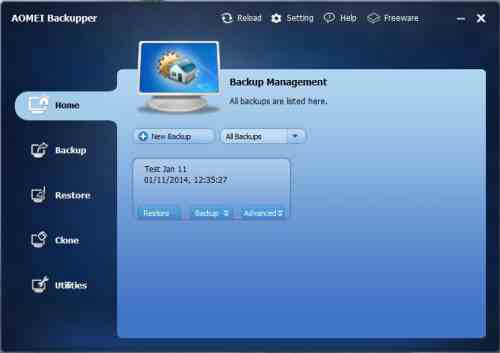 AOMEI Backupper Well worth a mention in this category because of its additional ability to quickly make backups of files and folders. The latest edition at time of writing is 2.0.1 and now has a few extra features such as the ability now to select multiple files and folders at the same time for backup along with support for performing a backup or restore across a network or NAS (Network Attached Storage), in addition you are now able to import and export all the backup tasks in XML format. The developers at AOMEI are constantly improving on their software whilst still maintaining a clean and easy to use GUI.
Since version 2.8.0 they added the ability to schedule the synchronization of files and folders automatically to HDD, USB and NAS, the current version is 3.2
Please follow this link for the full full review and rating: AOMEI Backupper.
Related Products and Links
You might want to check out these articles too:
Quick Selection Guide
Backup Maker (Personal Edition)


FBackup

v6.0.188 Released 30th June 2016 View the change log here See the following website for free plugins for your favorite program. http://www.backup4all.com/en/backup-plugins.html
EaseUS Todo Backup
Editor
This software category is maintained by volunteer editor AndyR. Registered members can contact the editor with any comments or questions they might have by clicking here.
Tags
best free back up programs, top backup programs, free backup tools, free backup utility, free disk backup, free drive backup free disk imaging, free file based backup and sync, free folder sync programs.
Back to the top of the article.
 We are looking for people with skills or interest in the following areas:
Comments
I've been playing around with 'Veeam Endpoint Backup free 1.5', which you might want to test for inclusion on the list. Seems user friendly and easy to use.
AOMEI Backupper Standard has been updated to version 3.5 (2016.07.11); the changelog has not been updated as of this post (http://www.backup-utility.com/changelog.html).
BackUp Maker Standard Edition has been updated to version 7.200 (2016.06.03); a [not quite current] changelog can be found at Softpedia's changelog page for the program - http://www.softpedia.com/progChangelog/BackUp-Maker-Changelog-19912.html .
Also, FBackup has been updated to version 6.1 Build 188 (2016.06.03). Changes too numerous to list included in the many updates that have occurred since version 6.0.129 can be found on Softpedia's changelog page for the program (most have to do with additional languages) - http://www.softpedia.com/progChangelog/FBackup-Changelog-116025.html .
Downloaded the Comodo software but the website is degenerate. You cannot create a User Account - just loops back to the Sign In Page... contacting Comodo is also difficult and when you do they just say there nothing we can do?
Does not deserve 5 stars!
FBackup has been updated to version 6.0.133 (2016.03.14).
Comodo Backup Registration problem
I was unable to Register for the "FREE 10 GB Online Storage account". I repeatedly received "Oops! An error occured. Please try again later." just to the right of the Register button on the page.
I have tried for days, with Chrome and IE, with the same result.
Suggestions?
Happened to me today. I called their tech support and the first thing they asked was had I paid for it. No, it is Free. They told me it is free for the first 90 days, but you have to process the CC first, then remember to cancel before the 90 days. Who needs 90 days worth of backups?
FBackup has been updated to version 6.0.129 (version 6.0, released on 2016.01.25, was a major update to version 5; full changelog at http://www.fbackup.com/forum/fbackup-6-t8540.html).
I suggest that CrashPlan should be included in this review. I have used many backup programs, and have found CrashPlan to be by far the best.
With the free version you can backup to multiple different destinations - External Hard drive, another computer on your home network, Network Attached Storage, a friends computer. The latter gives you OFFSITE BACKUP FOR FREE!. Once the initial backup has been made, subsequent backups are extremely fast as the program used block de-duplication in addition to incrementals. It can be configured never to delete backed up files and you can restore from a large number of previous versions (also configurable). It is very light on system resources - I am totally unaware of it running and I have backups to triggered every 15 minutes! It uses Shadow Copy to copy open files
This is strictly a file backup program - it does not do image backups
The only downside is the rather unusual user interface.
It might be a good idea to have CrashPlan reviewed here. What I can't understand is why Code42's own features comparison makes it look worse than you say. See http://www.code42.com/crashplan/features/compare/.
Free CrashPlan also gets a high proportion of dissatisfied users.
Does CrashPlan offer versioning or is only the last version saved?
Crashplan advertises infinite versioning from cloud backup. I assume you can set the number of versions for other backup destinations.
In addition to Crashplan, I use two other Time-Machine-Like real-time backup programs on various machines, to back up to my local NAS.
I've been using AutoVer for years. It has a clunky interface, but does versioned real-time backups to networked storage. It also provides backup to FTP, but I haven't used that. Unfortunately, its author doesn't visit his forum very often, so it's teetering on abandonware.
A program I've been using since then on my two latest machines for the last few years is Yadis! Backup. Same thing, versioned, real-time backup. It has been reasonably solid. But, I do need to delete the log file regularly. After it grows past a few GB the program crashes on startup. Deleting that file fixes the issue.
Both AutoVer and Yadis! Backup are free.
Drake Christensen
Would like to try Comodo but install always fail on windows 8.1
http://www.freefilesync.org/ cant be ignored. been using it past 2 years to backup my files to a networked pc set for that purpose,ext to main house.
Its cross platform.
It works well
Hello...tech-challenged senior here. Don't everyone groan please, but haven't backed up anything for over a year because the one time I tried something went goofy. By goofy I mean it seemed to fail. All this time later I can't remember exactly what happened but I just let it go and haven't tried again. What would be recommended for someone like me, who doesn't understand half of what you're all saying? Have Win7 64 bit, need something easy to understand and to run. I do have an external hard drive that has been waiting to be used. Not even sure what the difference between differential and incremental...think I understand real time and really do not want zip files, which is another subject as I can't seem to open mine.
Remember, backups are worthless; restores are priceless. A differential backup backs up only the files that changed since the last full back. For example, suppose you do a full backup on Sunday. On Monday you back up only the files that changed since Sunday, on Tuesday you back up only the files that changed since Sunday, and so on until the next full backup. Differential backups are quicker than full backups because so much less data is being backed up. But the amount of data being backed up grows with each differential backup until the next full back up. If you do an incremental backup on Tuesday, you only back up the data that changed since the incremental backup on Monday. So, each differential backup goes back to the date of the last Full backup while an incremental backup only goes back to the previous incremantal backup. You need a Full backup followed by one differential backup while you need the Full one plus all the incremental ones done since the full one.
One thing that I do not care for in AOMEI is the absence (at least I have not found it) of the ability to automatically delete backup files as the disk fills up. Very useful feature which has kept me in the Macrium Reflect camp as it also has the other AOMEI features. Agree, however, that AOMEI is more user friendly.
Bottom line is that all of the programs work and it is just a matter of personal preference as to which one appeals. Users should try everything and kick the tires. Then they will be in a good position to decide what works best for them.
Purchase another external drive, and alternate which drive you image into.
Don't bother with File Backups, and remove incremental from the English language.
Use a Backup program such as the free Seagate DiskWizard (it must see at least one Seagate drive connected, or it won't run)
They also have a free version for WD, if that is your brand of drives.
Make a bootable CD, and use that 'version' of the DiskWizard
If you post on this web page, I can provide more help there (as this web page is solely for file based backing up) -
http://www.techsupportalert.com/best-free-drive-cloning-software.htm
Rob
PS I am older than both of you
Pages