
|
 05. Aug 2015, 09:41 PM
|
#1 (permalink) |
|
Senior Member
Join Date: Oct 2012
Posts: 1,028
|
 Control Windows Updates with Group Policy Editor
One of the things that some people dislike about Windows 10 is forced updates. I posted before about an official tool which can be used to block updates. I think that tool should come in quite handy for some users, especially when updates cause problems. But what if you want finer control? Well, fear not. There is a way to get finer control via Group Policy Editor (or gpedit.msc). Here's how...
1. Sign in to an Administrator account. 2. Open the Group Policy Editor in either of two ways... 3. In the left pane of Group Policy Editor, expand Computer Configuration→Administrative Templates→Windows Components then click on Windows Update. 4. In the right pane, double-click Configure Automatic Updates. 5. In the window that opens, click on the button to Enable. 6. Next, configure the settings to your liking in the section labeled Configure automatic updating. There are four options...
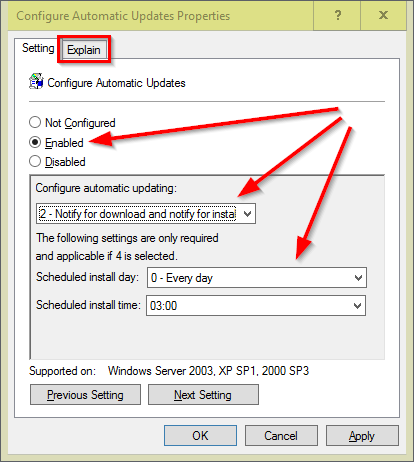 The Group Policy Setting will take a while to implement itself. Personally, I chose the first option in the list mentioned above. Some time later when I went to Settings→Update & security→Windows Update I saw the changes in the screenshot below... 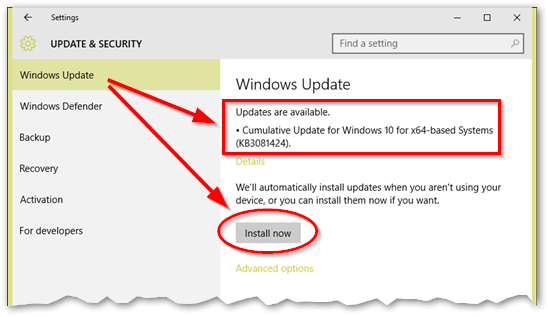 Don't get impatient if the changes take a while to show up in Settings. I didn't see the changes until the following day. Group Policy Editor is a Windows 10 Pro feature, however, there is a way that Windows 10 Home users can enable it too. I didn't post a link to the procedure because I don't know if it would be allowed but anyone should be able to find it with a simple search. BTW, most instructions for Windows 7 should work in Windows 10 too. IMPORTANT: Always backup before you make any tweak to the operating system! Group Policy Editor is a very handy tool for tweaking other system features as well. Enjoy 
|

|

|
|
29. Aug 2015, 02:07 PM
|
#4 (permalink) |
|
Senior Member
Join Date: Oct 2012
Posts: 1,028
|
Okay, I want to set the record straight before I mislead anyone - the gpedit trick isn't working. Even though I've set Windows Update to "Notify for download and notify for install" updates are still being installed and I am not receiving the "supposed" notifications.
Another thing I've tried is a registry edit which I found on the internet. It involves creating a new key with a DWORD value under HKEY_LOCAL_MACHINE\SOFTWARE\Policies\Microsoft\Win dows. Unfortunately, this isn't working either. Long story short, it looks like my last resort would be to connect by wifi and set my connection to "metered". However, that would be getting a bit too desperate so I'll be leaving things as they are for now. 
|
|
|
|
|
30. Aug 2015, 01:08 AM
|
#6 (permalink) |
|
Senior Member
Join Date: Oct 2012
Posts: 1,028
|
They have certainly made things difficult but I am not afraid to mess with the registry if that is what it takes to change how things work. I've gotten accustomed to fooling around in the registry and I can usually tell when an edit makes sense or not. Besides, I make backups just in case.
|
|
|
|
 |
| Thread Tools | |
| Display Modes | |
|
|


 Linear Mode

