
Best Free File-Based Backup Program [1]
Introduction
The theme of this category is to provide reviews for the most popular and best free file-based backup programs that provide adequate features, ease of use and ability to set and forget. File based backup programs do not usually support the creation of a system boot restore disk. The intention behind backup software is to backup important data you create, not generally to restore your operating system or applications. Use backup software to save document files, browser favorites, pictures, videos and other data, documents and media. There are other options for creating system restore disks and restoring applications. Some of the backup programs are easier to use than others usually at the cost of some features. Backup programs do have their own nomenclature for processes. Please take the time to educate yourself on the process and terminology. Gizmo's has several articles for reference, some mentioned later in this review and the Freeware Forum to post questions. Downloading and trying two or three different programs to perform a test backup may be preferable to determine the proper fit for your needs and experience.
Important Features:
- Shadow Copy or VSS - Comodo Backup
- GPT drives - EaseUS - AOMEI
- Incremental & Differential Backup - Comodo, Backup Maker
- AES Security Encryption - Comodo, Backup Maker
Note: There are a lot of free backup programs that have some unique features and excellent functionality that really deserve mentioning, but room here does not allow. If you are looking for more advanced programs, or some specific functionality, please check out the three links directly below. Special Review
Recommended Reading:
- Types of Backup Software : What’s the difference between Disk Imaging, File Based Backup, or Synchronization, and which should I use? [3]
- File Backup Terminology: What do terms like “Differential,” & “Incremental,” mean, and how will they help me? [4] (Includes other backup related terms.)
- More Free Backup Software Recommendations & Reviews [5] (Advanced Backup Programs, Backup Programs with Unique Features, Reviews of Backup Software For or By Our Readers, etc.)
 Read this article in Spanish (Español) [6]
In a Hurry?
 Go straight to the Quick Selection Guide
Discussion
TIP — Can't Find What You Need in the Choices Below? Try Our Extended List of Backup Programs. [5]
 [7]Backup Maker: Backup Maker opens with a clean console inviting the user to start with a backup or restore. Click backup to start the restore wizard. Choose presets or specific files and folders, scheduling, full or partial backups, a target location, and a backup name, those are the basic wizard features. The advanced features include the ability to catch up missed backups, creating settings for not overwriting older backups, security options, back up condition options, actions to occur before/after backup, and splitting the backup. The wizard did a good job of walking me through the options. The developer has fixed the system slowing or freezing when drilling down directory trees that one of our user's pointed out. I've tested this feature again and cannot recreate the issue. The software has one of the most extensive sets of options for customizing backups. Unfortunately imaging, cloning or system boot backups are not supported. Backup Maker does not limit any of the functionality versus the paid version. The omissions from the paid version are commerical use and technical support. For restoration, assuming your operating system is installed and functional, Backup Maker will restore data in a few short steps. Click the restore button, select the files to restore and where to restore them. Keeping with the program's trait of selection detail, the options to select specific files to restore from a group, and being able to select an alternative destination or restore the original path are nice options.
.jpg) [8]FBackup: starts with a Getting Started window over the main window. The Getting Started window can be turned off after the first use however this window is also a Wizard that novice users may find beneficial. The Getting Started options are Backup, Restore and Links. Select Backup another window will open. Name your backup, choose the target destination, click next. The following window is for selecting and excluding files. This requires a familiarity with file tree structions and locating the information you want to backup on the hard drive. The next window is for encryption and selecting full or mirror backup. Mirror backup will essentially copy files from one location to another. Mirror backups cannot be compressed or password protected. The next window is for scheduling. A nice feature is each window has a help link associated with the information on that window. There is also an advanced button at the bottom of the screen to access other options. Essentially there are four steps to creating a backup. After the backup is complete a notification window will pop-up showing the files backed up. This is part of the CRC32 test. The test cannot be performed again after the backup. FBackup will return to the main window. FBackup free does not offer incremental or differential backups. Compressed files are zipped so no need for mounting/unmounting. Backups can be password protected but they are not encrypted. A unique feature of FBackup is the use of plugins which can be used to automate backups. These plugins are preset for specific applications like game saves, email data, web browser settings, anti-virus configurations, etc. The developer has created a rather long list of available plugins to help capture specific application files. The options menu under the File tab provides access to configuring essential functions of the software. Since FBackup is heavy on pop-up notifications, the Notifications option is very handy for customizing what pop-up windows you see and for how long. The UI is similar to MS Office 2010's ribbon toolbar making FBackup more comfortable for users of MS products. Overall a nice backup program for users of moderate computer knowledge. My dislikes are the restrictions in the free version compared to the paid version.
[8]FBackup: starts with a Getting Started window over the main window. The Getting Started window can be turned off after the first use however this window is also a Wizard that novice users may find beneficial. The Getting Started options are Backup, Restore and Links. Select Backup another window will open. Name your backup, choose the target destination, click next. The following window is for selecting and excluding files. This requires a familiarity with file tree structions and locating the information you want to backup on the hard drive. The next window is for encryption and selecting full or mirror backup. Mirror backup will essentially copy files from one location to another. Mirror backups cannot be compressed or password protected. The next window is for scheduling. A nice feature is each window has a help link associated with the information on that window. There is also an advanced button at the bottom of the screen to access other options. Essentially there are four steps to creating a backup. After the backup is complete a notification window will pop-up showing the files backed up. This is part of the CRC32 test. The test cannot be performed again after the backup. FBackup will return to the main window. FBackup free does not offer incremental or differential backups. Compressed files are zipped so no need for mounting/unmounting. Backups can be password protected but they are not encrypted. A unique feature of FBackup is the use of plugins which can be used to automate backups. These plugins are preset for specific applications like game saves, email data, web browser settings, anti-virus configurations, etc. The developer has created a rather long list of available plugins to help capture specific application files. The options menu under the File tab provides access to configuring essential functions of the software. Since FBackup is heavy on pop-up notifications, the Notifications option is very handy for customizing what pop-up windows you see and for how long. The UI is similar to MS Office 2010's ribbon toolbar making FBackup more comfortable for users of MS products. Overall a nice backup program for users of moderate computer knowledge. My dislikes are the restrictions in the free version compared to the paid version.
.jpg) [9]EaseUS Todo Backup: EaseUS is designed to be user friendly by simplicity without a wizard. However this assumes a level of experience that may exclude some novice users. The main menu has three quick link options, Disk/Partition backup, System backup and File backup. System backup is essentially the same as Disk/Partition backup only the presets are fixed for backing up the system files. In the free version EaseUS will not create a bootable system restore disk. Using the cloning or imaging features however hard drive information can be completely restored by using a seperate boot disk/drive like a system CD or Flash drive. Using File Backup the default view is a directory tree to manually select files or accept the default settings. There is another option by clicking the arrow on the file tab and selecting File Type to see a list of presets or create your own. Once the files are selected, a small row of links will open other windows for additional options. There is a link for scheduling, backup options and Image-Reserve Strategy. The backup options are limited in the Free version. Compression is either none or normal, splitting, and priority settings of normal or medium. VSS is not an option, incremental backups are available, not differential with the Free version. Once configured however backups are essentially two clicks away using presets. The Clone menu on the left sidebar has links to perform Disk and Partition Cloning. The Tools menu on the left sidebar offers Check Image, Wipe Data, Enable PreOS, Create Emergency Disk, and Mount/UnMount. EaseUS does support GPT disks and is for personal use only. Admin level use is required to restore and perform other functions. Overall EaseUS ToDo Free is a quick simple program to use. Being a restricted version of their full version leaves it lacking in overall features compared to other backup programs. EaseUS must be downloaded from CNET or use this link [10], because the verification code system on the developer's site doesn't work. I used the CNET download without incident.
[9]EaseUS Todo Backup: EaseUS is designed to be user friendly by simplicity without a wizard. However this assumes a level of experience that may exclude some novice users. The main menu has three quick link options, Disk/Partition backup, System backup and File backup. System backup is essentially the same as Disk/Partition backup only the presets are fixed for backing up the system files. In the free version EaseUS will not create a bootable system restore disk. Using the cloning or imaging features however hard drive information can be completely restored by using a seperate boot disk/drive like a system CD or Flash drive. Using File Backup the default view is a directory tree to manually select files or accept the default settings. There is another option by clicking the arrow on the file tab and selecting File Type to see a list of presets or create your own. Once the files are selected, a small row of links will open other windows for additional options. There is a link for scheduling, backup options and Image-Reserve Strategy. The backup options are limited in the Free version. Compression is either none or normal, splitting, and priority settings of normal or medium. VSS is not an option, incremental backups are available, not differential with the Free version. Once configured however backups are essentially two clicks away using presets. The Clone menu on the left sidebar has links to perform Disk and Partition Cloning. The Tools menu on the left sidebar offers Check Image, Wipe Data, Enable PreOS, Create Emergency Disk, and Mount/UnMount. EaseUS does support GPT disks and is for personal use only. Admin level use is required to restore and perform other functions. Overall EaseUS ToDo Free is a quick simple program to use. Being a restricted version of their full version leaves it lacking in overall features compared to other backup programs. EaseUS must be downloaded from CNET or use this link [10], because the verification code system on the developer's site doesn't work. I used the CNET download without incident.
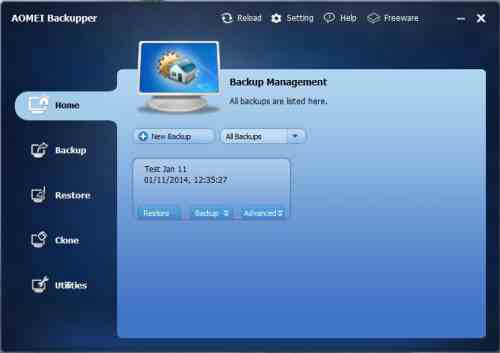 [11]AOMEI Backupper [12] Well worth a mention in this category because of its additional ability to quickly make backups of files and folders. The latest edition at time of writing is 2.0.1 and now has a few extra features such as the ability now to select multiple files and folders at the same time for backup along with support for performing a backup or restore across a network or NAS (Network Attached Storage), in addition you are now able to import and export all the backup tasks in XML format. The developers at AOMEI are constantly improving on their software whilst still maintaining a clean and easy to use GUI.
Since version 2.8.0 they added the ability to schedule the synchronization of files and folders automatically to HDD, USB and NAS, the current version is 3.2
Please follow this link for the full full review and rating: AOMEI Backupper [13].
Related Products and Links
You might want to check out these articles too:
Quick Selection Guide
Backup Maker (Personal Edition)


FBackup


v6.0.188 Released 30th June 2016 View the change log here [20] See the following website for free plugins for your favorite program. http://www.backup4all.com/en/backup-plugins.html [21]
EaseUS Todo Backup
Editor
This software category is maintained by volunteer editor AndyR. Registered members can contact the editor with any comments or questions they might have by clicking here [2].
Tags
best free back up programs, top backup programs, free backup tools, free backup utility, free disk backup, free drive backup free disk imaging, free file based backup and sync, free folder sync programs.
Back to the top of the article.