

|
Introduction
|
|
We welcome the addition of new software category reviews to this site. So if you feel a particular software category such as "Best Free Color Picker" is missing and you can from experience recommend two or more good free products in that category then why not contribute that knowledge to the internet community by writing a short comparitive review. Writing your review You can write your review from scratch using the online WYSIWYG editor that's built into our the Drupal CMS that runs this site. However this is not recommended as any glitch such as a temporary failure of your internet connection might result in you losing all your work. We recommend instead that you write your review offline in a plain text text editor such as Notepad then copy and paste the review into the Drupal online editor. This way if something goes wrong, you at least have a copy of your work. You can use Word or any other editor or word processor to write your review but it is not recommended as you will end up copying strange formatting commands that will mess up the layout of your review. If you really want to use Word or other WYSIWYG editor then save the review as a plain text file (ie .txt) and copy and paste the plain text file into Drupal. Whatever option you choose please use the Drupal editor for all formatting such as bolding and bullet points. That way the presentation of your review is controlled by our Drupal template and style sheets and will be preserved if we change templates. So never copy text formating from another editor. That includes HTML editors. Always do your formatting using the Drupal editor. |
|
Creating a new software category
|
|
This is a two stage process first you create and save a template for your new software category and second you edit the template you created. Step A: Create a review template 1. Make sure you are logged in to the site. 2. Select "Create content" from left sidebar 3. Select "Article" 4. In the Title box enter the software category. Start with "Best Free ..." and follow it with your new category, for example "Best Free Color Picker." Capitalize all words of four letters or more as this will be your page heading. 5. In the "Article type" select one of more broad classes of software that best fit you new category. Start off by selecting the parent category "PC freeware" then select the sub-category (or sub-categories) from the list by holding down the Ctrl key while you select. Select only from the following classes: -PC Freeware 6. The software category reviews on our site are in a standard format. When creating a new category of software you have to generate a skeleton outline of the page using a special script. To generate the skeleton outline do this: a. Go this this page. This will open in new tab or window in your browser. b. In the new tab or windows click the button labeled "Create Sample Article" then select the number of products you wish to cover in the aerticle. This will then generate a HTML template for the article in the box below. You can then copy and paste this template into your review using the instructions below. c. Left click anywhere in the box below headed "Code to be inseted in your article" and press Ctl A to select the html contents of the box then Ctrl C to copy the code to your clipboard. d. Return to the tab in your browser where you are creating your new review. Right click anywhere in the "Article text box" then click on the first icon in the text editor toolbar. That's the one labeled "Source." This switches the editor to source mode which allows you to enter raw html code rather than text. e. Left click anywhere in the editor box and enter Ctrl V to paste the copied html template code into your review. f. Click the Source icon
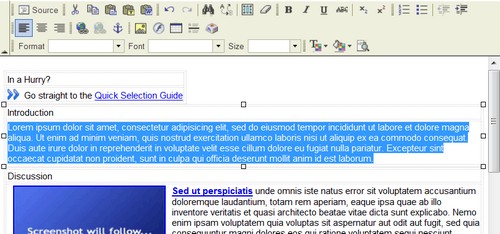
7. Scroll down to the heading "URL path settings" and click on the little arrow to the left of the heading to expand the options. Now uncheck the box that says "Automatic alias." In the box below enter the title of your review in lower case and with a "-" between words instead of spaces. Please also add ".htm" to the end. So if your review is titled "Best Free Color Picker" enter "best-free-color-picker.htm" 8. Scroll to the bottom of the page and click "Submit" to save your work. You have now created and saved your template. Now you must modify the template to create your review. Step B: Modify the template to create your review The template you have created is for a review covering three products. This can be reduced to cover more products or expanded to cover more. See the links at the end of this article to find out how to do this. Hoewever in this tutotial we will proceed on the basis that you are creating a review with three products, 1. Go to the page conaining your saved template and click the "Edit" tab at the top. 2 . The first section you need to add is the introductory text. If you have not already done so, we suggest you write the introduction offline using a plain text editor such NotePad. Here's how to paste it into the online editor: First copy your introductory text to the clipboard using Ctrl C. Then, in the Article text box select the paragraph under "Introduction" as illustrated below:
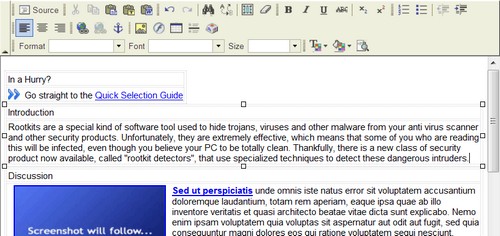
Replace the selected text by pasting your introductory text from the clipboard using Ctrl V. The result should look something like the screenshot below. You have now completed the introductory section:
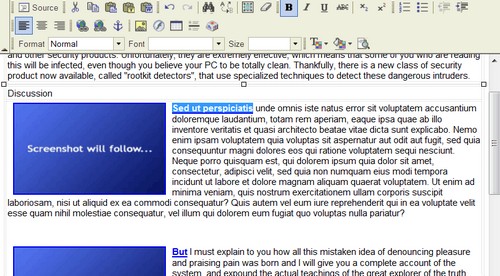
3. Now we will enter the main body of your review into the discussion section. The technique is the same as that used when creating the introduction, that is copy the review text from your text editor and paste it over the dummy text in the template. There is however one small difference. The template contains three dummy text paragraphs, one for each of the three products in the review. The first word of each dummy paragraph is shown in blue and this is linked to the product details at the end of the review. This blue underlined text is intended to contain the name of the product you are reviewing. I strongly suggest that your review of each product also starts with the name of the product as this means you can use the linking built-in to the dummy template rather than create the links yourself. First copy the name of your first product to the clipboard using Ctrl C. Then seelct the bue underlined text in the first paragraph under the heading "discussion" in your template.
Now use Ctrl V to paste the name of your first software product over the template dummy text. Alternatively, just type it in.
Now copy your discussion text that you have written offline to the clipboard. Select the dummy text:
Replace the selected text by pasting from the clipboard using Ctrl V.
Now repeat this process for the two other software products you have reviewed. 4. Once you have entered the review text into the template you now need to add details of the products reviewed by creating the Quick Selection Guide that appears at the end of your review. This is a two step process: First you need to enter the details of each product covered in your review into the Software Product Database. This needs to be done for each individual product. Details how to add the products to the database can be found in the video tuorial: How to Add a New Product to Your Reviews Second you need to edit some special html code contained in the review template that will automatically insert the product details from the Software Product Database into your review. Here's how you do it - In the Drupal WYSIWYG editor click the "Source" button at the top right of the editor toolbar. This will display the HTML code for your review. - locate the following line of code that appears towards the end of the review template:
The easiest way to locate this is to press Ctrl F and locate the line using your browsers on-page search function. - replace <your article title here> with the exact title of your review. So if your review was titled "Best Free Online Widget" then the modified line would look like this:
5. You have now pretty well completed your review. The one step remaining is to upload the correct screenshots for each of your products. You will need two screenshots of each product. The first is a thumbnail of width 200 pixels. This is what is displayed in your review. The second is the same shot as the thumbnail but with a resolution of 500 pixels. This second shot is linked to the thumbnail so that if someone clicks the thumbnail the higher resolution shot is displayed. It is strongly recommended that you resize your original screenshots to 500 and 200 pixels yourself using XnView or other graphics editor rather using the Drupal editor. You will get much better results that way. To change the dummy screenshots with your own thumbnail right click on the dummy and select Image Properties, Then click Browse Server to get to the panel which allows you to browse for your screen shot on your local PC, upload it to the server and include it in your review. Full details how to do this can be found in this video tutorial here. That's it. Your review is now complete. Save you changes and then check the completed review for grammatical errors and layout problems. Related links |
 on the editor toolbar. This will return the editor to text mode and you should be able to see the review template looking something like the screenshot below.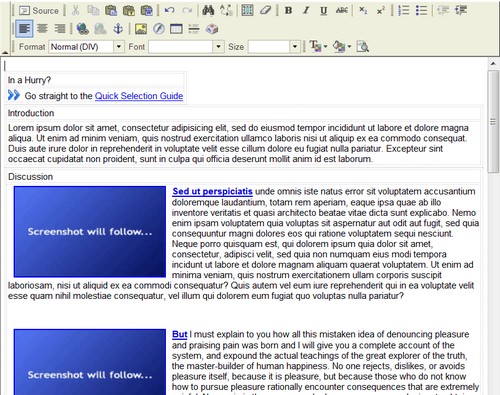


 We are looking for people with skills or interest in the following areas: