

Why Your Hard Drives Health Matters
You may ask yourself, "Why do I need to care about the health of my hard drive(s)", or even "What is a hard drive (HD, hard disk, hard disk drive, HDD)"? The hard drive is where the operating system as well as all of your valuable files are stored. It has many moving parts which over time wear out or degrade. It's important to be aware of these changes so you can prevent the loss of your data before the drive fails completely and your files are lost.
It's important to have all the files you can't replace backed up and stored in a safe place, because with or without your knowledge your hard drive will eventually start to degrade. It may die unexpectedly, or slowly develop more and more bad blocks of data. When a hard drive develops a bad block of data, the file(s) that are part of the group of blocks that are now unreadable, become unmovable. You may find you go to delete a file that should not be giving you any hassle and it just won't move or an error pops up. You can't delete it or modify it. It may be because of one or more bad or unreadable blocks of data.
Checkdisk, which is part of the Windows operating system, can replace the unreadable blocks and allow you to move the files, but then the files that it has repaired have lost their integrity and most likely they will need to be replaced. Tools such as HDDScan can scan the blocks of data on a hard drive and detect the blocks that have gone bad, alerting you to the fact your hard drive is degrading and should be backed up as soon as possible, and replaced before more blocks become unreadable and files become corrupted.
Unexpected Surprises
You can't rely on Self-Monitoring, Analysis, and Reporting Technology (S.M.A.R.T.), alone, to warn you when it's time to backup your data and replace the hard drive. What if your dog or child knocks over the tower while the computer is on - it could be the end of that hard drive. Or, if you drop your laptop. The hard drive is likely to be the first thing that needs replacing. Unexpected things happen, and sometimes a hard drive will just fail with little warning.
S.M.A.R.T. Is not Wise
S.M.A.R.T. monitors various parameters within the hard drive and when the hard drive wears out and any of them drop below a certain threshold or point, it alerts you. Relying on it alone is not the wisest approach. It's best to detect problems earlier on than to rely on a threshold. At times the threshold may be too high and before it alerts you your data may be difficult, if not impossible, to retrieve.
Temporary Solutions
In the event your hard drive is not letting you get into your operating system to access the Internet, to buy the hard drive cheaper online or what not and you only have that one computer, I recommend using a Live CD of Ubuntu or another Linux distribution. Linux is an Open Source operating system. A live CD means that it can boot from the CD into the memory on the computer, and you don't need a hard drive to run it. Usually you can also access the Internet from it as well. You will need to access the computers BIOS and program the CD/DVD drive to boot first. Anything that you do on it though is erased when you restart or the power goes out, unless you save it to a USB flash drive, external hard drive, or an internal hard drive. I've used an Ubuntu Live CD to help me transfer files from a dying hard drive to an external hard drive. If the power should go out though, you may lose data.
When Replacing
It's important to know when purchasing a new internal hard drive to make sure you know how your hard drive is connected to your computer. These days with newer technology it's connected via SATA. S-ATA 1 is 1.5Gbits/s or 187.5MBytes/s (8 bits equal 1 Byte), 2 is 3.0Gb/s or 375MB/s, and 3 is 6.0Gb/s or 750MB/s. SATA 3 came out in early 2010. Back in the day they used PATA or IDE, which went up to 133MB/s. The newest hard drives for P-ATA were made as late as 2007 and can still be purchased.
How your hard drive is packaged when it gets to you can also effect the health of it. If it was knocked around a lot during shipping and it wasn't packaged securely enough, it may cause your new drive to prematurely fail. That's why it's important to test old as well as new hard drives, to ensure there are no bad blocks or any other problems that may arise.
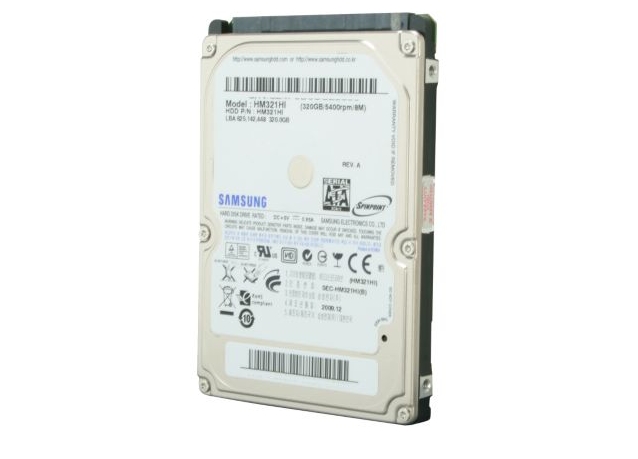
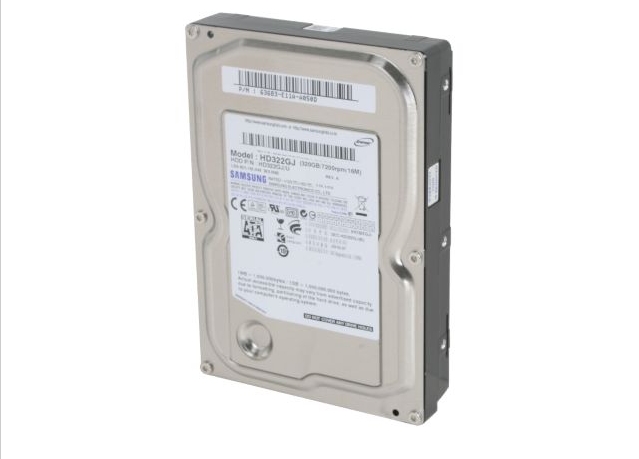
2.5" Laptop HD 3.95"x2.75"x0.37"0.24lb 3.5" Desktop HD 5.79"x4"x1.03"0.95lb
Alternative Forms Of Storage
There are CD, DVD, as well as Blu-Ray discs that can be written to, but one scratch on either side of the disc may cause it to become unreadable. Even if you keep them in perfect condition, they too are subject to degrading, which over time could cause your data to become unretrievable.
There are USB Flash Drives that can store important files and are relatively inexpensive. There are SSD (Solid State Drives) that have no moving parts, but they don't offer much in the way of space for your money, at least not yet. There is also the real possibility of 'sudden death' with an SSD.
External Hard Drives
There are also external hard drives: just a hard drive put in a casing. Most use USB 2.0, which has been around since 2001. USB 3.0 was released at the beginning of 2010. Even though USB 2.0 is supposed to get 480Mbits/s or 60MBytes/s the max for most is 30MB/s (8 bits equal 1 Byte).
USB 3.0 has a maximum theoretical speed of 600MB/s or 4800Mb/s.
There is also eSATA, and eSATAp which is power over eSATA so there is no need for an external power source. eSATA 2 is 375MB/s(3Gb/s) and eSATA 3, which came out in early 2010, is 750MB/s(6Gb/s).
FireWire is another possibility, 1394a is 400Mbits/s or 50MBytes/s, and 1394b is 800Mb/s or 100MB/s. Of course any device can only go as fast as it is designed to go, which may not be at the maximum speed of a particular port.
Though the hard drive may not be inside your computer, it should still be treated like a delicate flower. Drop it once and it may not be the same again.

Samsung S2 External USB 2.0 HD 4.37" x 3.23" x 0.67"
There are many free programs that are capable of providing you with information on the drive itself, S.M.A.R.T. parameters, benchmarking, and otherwise helping to ensure the health of both internal and external hard drives.
Links
Here are some links to useful articles and software:
Best Free Hard Drive Health Monitoring & Diagnostic Programs
The new iSSD... talk about small.
 We are looking for people with skills or interest in the following areas: